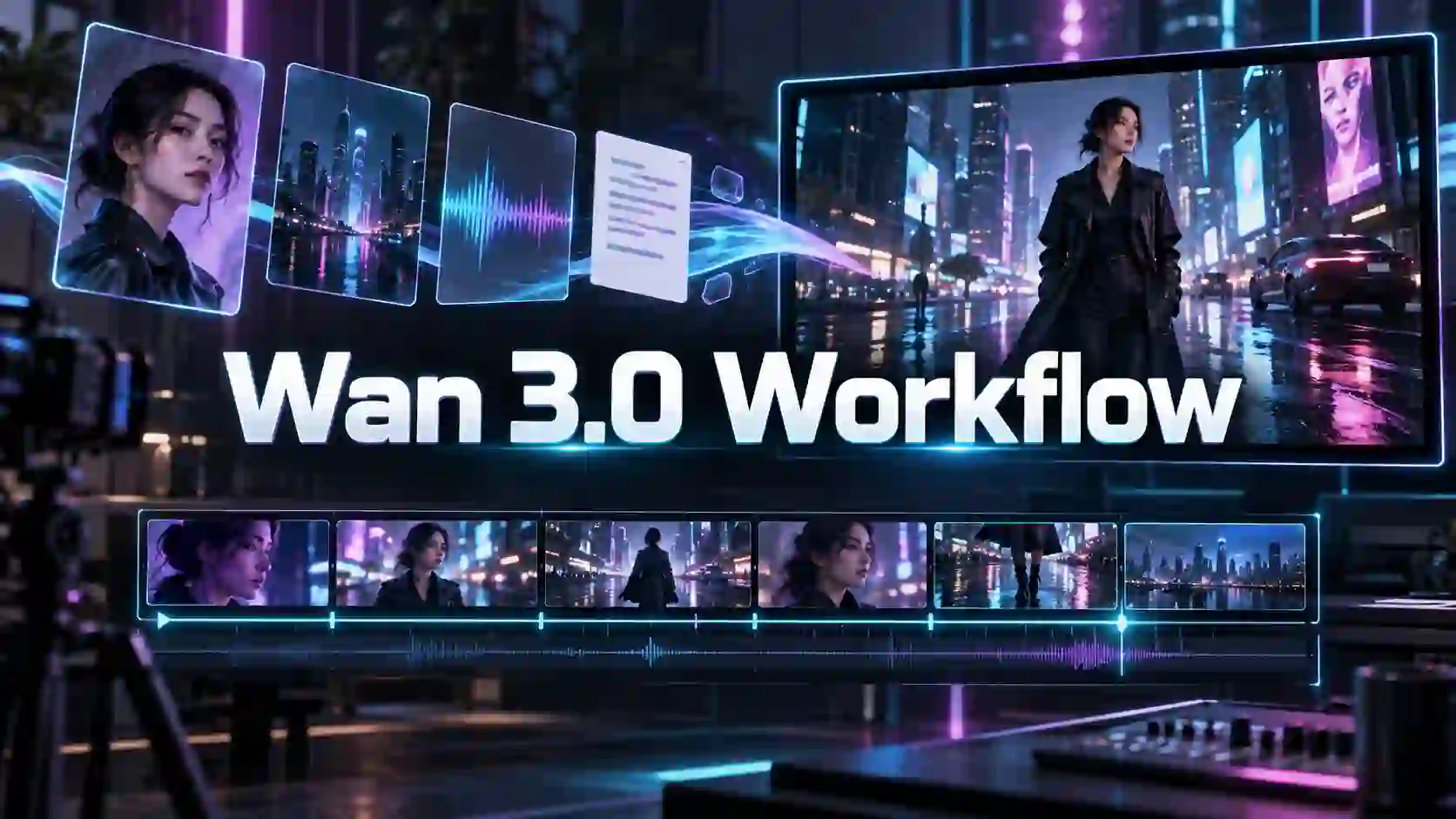
Wan 3.0 gives creators more room to develop an idea through longer video generation and broader reference inputs. For a product campaign, social post, or short explainer, the challenge is turning those capabilities into a clear creative plan.
This Wan 3.0 workflow takes you from a focused brief to a first draft you can evaluate and refine.
TL;DR: Wan 3.0 AI Generator Available
Start with one takeaway. Decide who the video is for and which visible action will communicate your message.
Let the idea determine the length. Extra seconds are useful for a demonstration or a reaction; a simple reveal may work better as a short clip.
Assign references specific roles. Separate the material that defines your subject from the material that guides the setting, movement, or sound.
Review the whole sequence. A strong opening frame is not enough if the product changes shape, the action breaks, or the ending feels rushed.
Try Wan 3.0 AI Video Generator NOW
What Wan 3.0 Changes About Creative Planning
More time and more context make the brief more important.
Wan 3.0 supports native video generation up to 30 seconds and expands reference workflows to include documents and webpages alongside visual and audio material. These capabilities create more space for an idea to unfold and more ways to communicate it.
The practical shift is in how to prepare. Instead of describing only a striking image, think about what happens over time: how the subject enters, what changes, which sounds matter, and where the scene ends.
Longer duration does not automatically create a better story.
Richer inputs do not automatically resolve conflicting directions.
A clear brief connects the model’s capabilities to your actual project.
Step 1: Define the Audience and the Takeaway
Decide what matters before deciding how it looks.
An AI video creative brief can be short. Answer four questions:
Audience: Who is watching?
Message: What is the one thing they should remember?
Action: What can happen on screen to communicate that message?
Ending: What should viewers see in the final moment?
For example, imagine planning a promotional video for a compact projector.
Brief element | Creative direction |
Audience | People interested in a comfortable home movie setup |
Message | A compact projector can fit naturally into a cozy living space |
Action | Reveal the projector on a coffee table, then establish the surrounding room |
Ending | Hold a clear view of the product with room for a later CTA |
This gives the video a purpose without requiring a long script. It also makes unnecessary details easier to remove. A fast chase scene or several unrelated locations would distract from this particular message.
Step 2: Choose the Length and Plan the Beats
Give each important moment enough time to register.
Use Wan 3.0 video planning to organize a few meaningful beats rather than a list of disconnected events.
For the projector concept, a simple sequence could be:
Reveal: Establish the product in its setting.
Develop: Move the camera gently to show the comfortable room around it.
Resolve: Settle into a stable composition that connects the product with the viewing experience.
Treat these beats as direction, not frame-exact timing commands. If one continuous movement communicates the idea, avoid adding cuts just to make the prompt sound cinematic.
When a Longer Video Helps
Longer generation is useful when an action needs to finish, a conversation needs a reaction, or a camera move needs to reveal meaningful context.
Wan 3.0 30-second video generation gives you that option, but the maximum is not a target.
For a quick product reveal or a visual hook, choose a shorter sequence.
For a demonstration, allow enough time to understand the change in state.
If the concept contains several distinct messages, separate clips may be easier to refine and assemble.
Step 3: Give Every Reference a Clear Role
Use references to reduce guesswork.
In a Wan 3.0 reference-based video workflow, each asset should resolve a specific question. A product photo defines appearance. A room image establishes the setting. A reference clip can suggest camera movement or pacing.
For the projector concept, separate those roles explicitly:
Use the product photo for the projector’s shape, color, lens position, and stand. Use the room image for the setting and warm evening light. Keep the projector naturally sized on the coffee table. Begin with the product visible, then slowly pull back to reveal the cozy living room. Finish with a steady composition. No dialogue.
This is clearer than asking the model to “combine all references.” Avoid mixing different product versions or contradictory visual styles unless the distinction is intentional.
Turn Documents into a Focused Message
For supported Wan 3.0 document-to-video workflows, identify the source material’s most useful information before generating. A product brief may contain specifications, positioning, and several selling points; a short video rarely needs all of them.
Specify the intended audience, the main takeaway, and which details must remain accurate.
For a setup guide, focus on one procedure.
For a presentation, select one conclusion and the visuals needed to explain it.
Check the available upload options in your chosen workflow. Model-level support for a reference type does not mean every interface accepts it in every mode.
Step 4: Match the Plan to the Publishing Format
Where the video runs should shape its composition and rhythm.
Reels, TikTok, and YouTube Shorts
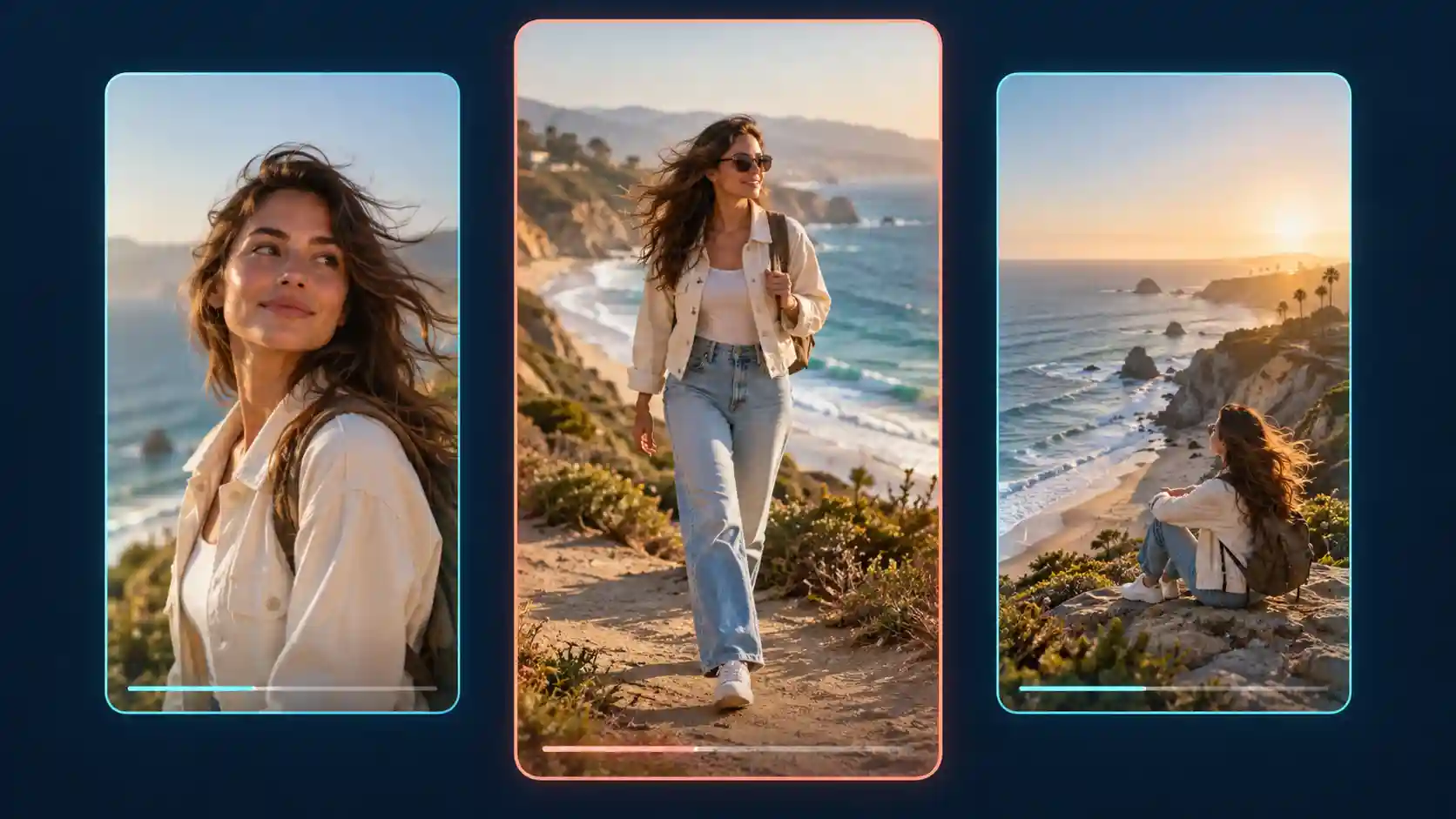
For vertical social content, establish the subject early and keep the main action easy to follow. Leave space around important details for captions and platform controls.
Product Pages and Website Visuals
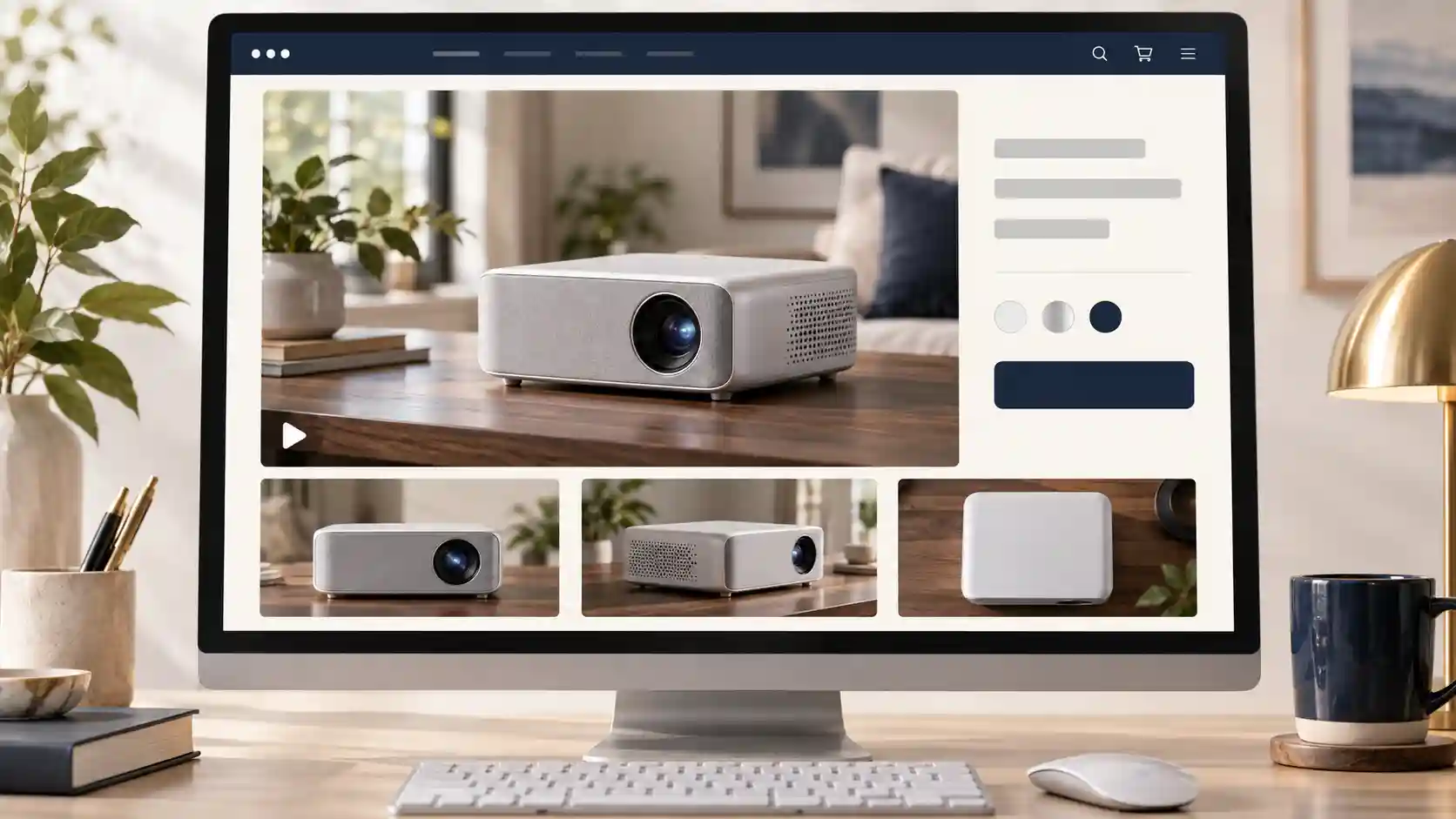
For AI product videos for ecommerce, prioritize a clear view of the item and a meaningful demonstration or context. Avoid dramatic movement that makes the product difficult to inspect.
Plan a version that communicates without sound. A viewer should still understand the setting and action when the video is muted.
Explainers and Presentations
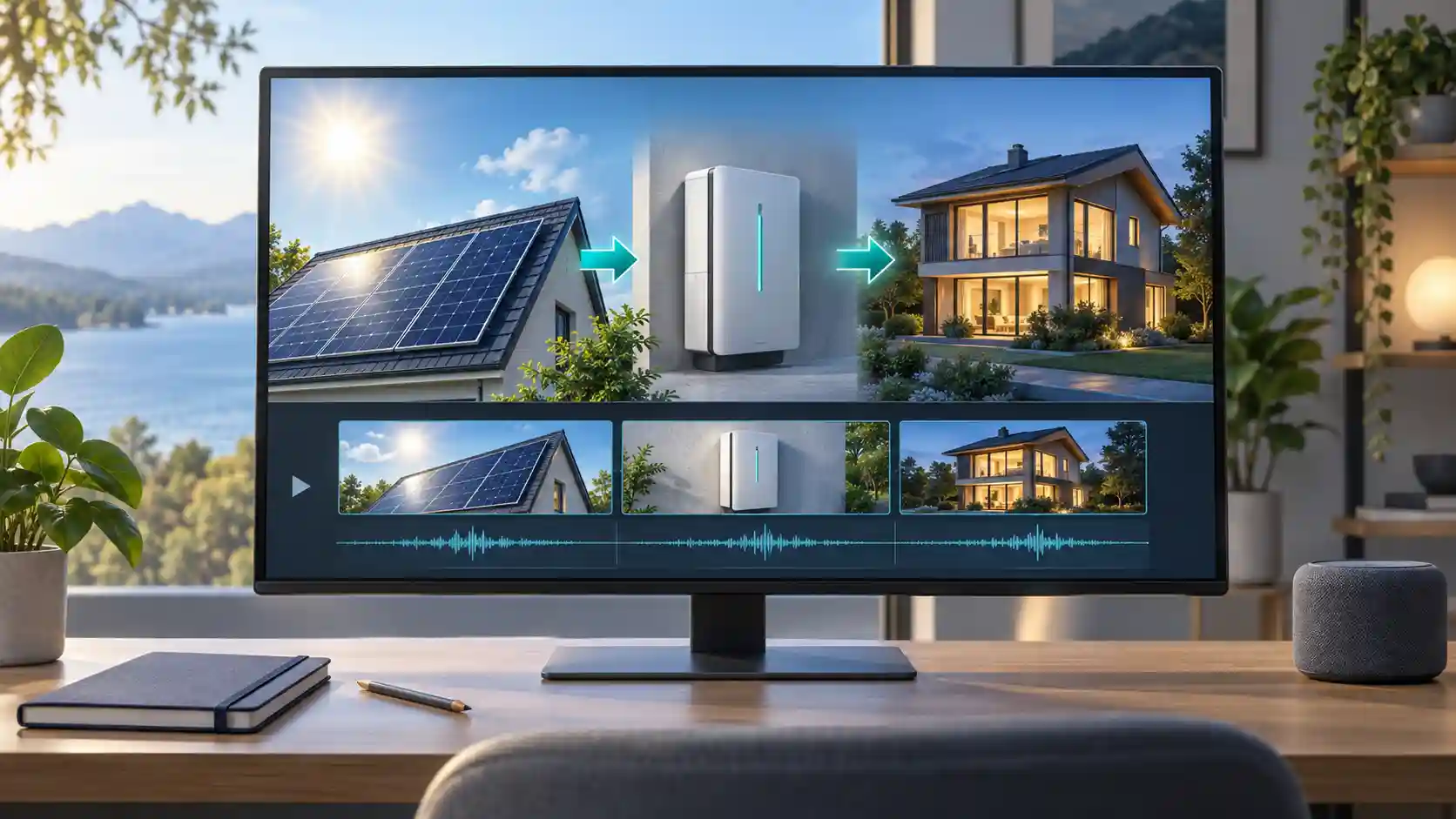
Build each sequence around one information point. If narration is needed, keep it concise and allow the visuals time to support it.
For exact app navigation, use real screen recordings for the essential steps. Generated scenes can supply introductions, transitions, or conceptual illustrations around accurate source footage.
Step 5: Generate a Draft You Can Evaluate
Test the creative decision before polishing the finish.
Open the Wan 3.0 generator with your brief and references ready. Select the mode and settings that fit the task, and review the displayed credit cost before generating.
Start with a manageable draft. If you are testing whether the camera movement works, keep the action simple. If the product’s appearance is the priority, avoid introducing complex handling in the same attempt.
For sound, choose only what supports the message. The projector scene might need quiet room ambience; a conversational scene needs clear speakers and concise dialogue. State these requirements instead of leaving the audio direction open-ended.
A later generation can vary even when the prompt is similar. Review the revised output as a new result rather than assuming that a higher-resolution generation will exactly reproduce an earlier draft.
Step 6: Review the Sequence Against the Brief
Judge the whole video, not just its best frame.
Use four questions to assess the result:
Message: Can a viewer understand the intended takeaway?
Continuity: Do the subject, product details, and spatial relationships remain coherent?
Sound: Do speech, ambience, and effects match the visible action?
Ending: Does the sequence finish cleanly, with room for the next edit or a CTA?
Make the next instruction specific. “Keep the projector’s lens and stand unchanged during the pullback” identifies a problem more clearly than “make it better.”
For marketing deliverables, add exact captions, offer text, and calls to action afterward when you need reliable wording and easy revisions.
How Wan AI Models Evolved Toward Greater Control
Wan 3.0 extends a workflow built across several generations.
This brief Wan AI model evolution overview explains the progression without treating every familiar feature as new to 3.0.
Model | Key contribution to the workflow |
Wan 2.1 | Open video model foundations for text- and image-driven creation |
Wan 2.2 | Mixture-of-experts architecture and further cinematic visual development |
Wan 2.5 | Native audio generation alongside video |
Wan 2.6 | Reference-based appearance and voice continuity, plus multi-shot storytelling |
Wan 2.7 | Broader editing, reference control, and video continuation |
Wan 3.0 | Longer native generation and richer context from documents and webpages in supported workflows |
The broader lesson is practical: as generation offers more control, creators benefit from making clearer decisions about time, references, and the purpose of each scene.
Start with One Clear Idea
A strong Wan 3.0 workflow begins with a focused message and gives every scene, reference, and revision a purpose.
Pick one product, story moment, or explanation
Build a manageable first draft
Refine it around what viewers need to understand.
Wan 3.0 Workflow FAQs
Can I reuse a prompt written for Wan 2.7?
Yes, as a starting point. Update the pacing if you want a longer sequence, and explain the role of any additional references. Keep instructions that still serve the project rather than rewriting everything.
Do I need a finished script before using Wan 3.0?
No. A short brief is often enough for visual exploration. Prepare a tighter script when the video depends on exact dialogue, narration, or a specific sequence of information.
Should I generate one long video or several short clips?
Choose a longer generation for an event that benefits from continuous development. Use separate clips when you need independent revisions, different locations, or flexible editing and pacing.
Can one creative brief work across several video formats?
Yes. Keep the audience and main message consistent, then adapt framing, pacing, and text placement for each destination. Do not assume a simple crop will preserve the most important action.